
Every PodBulk Tool Explained (and When to Use It)
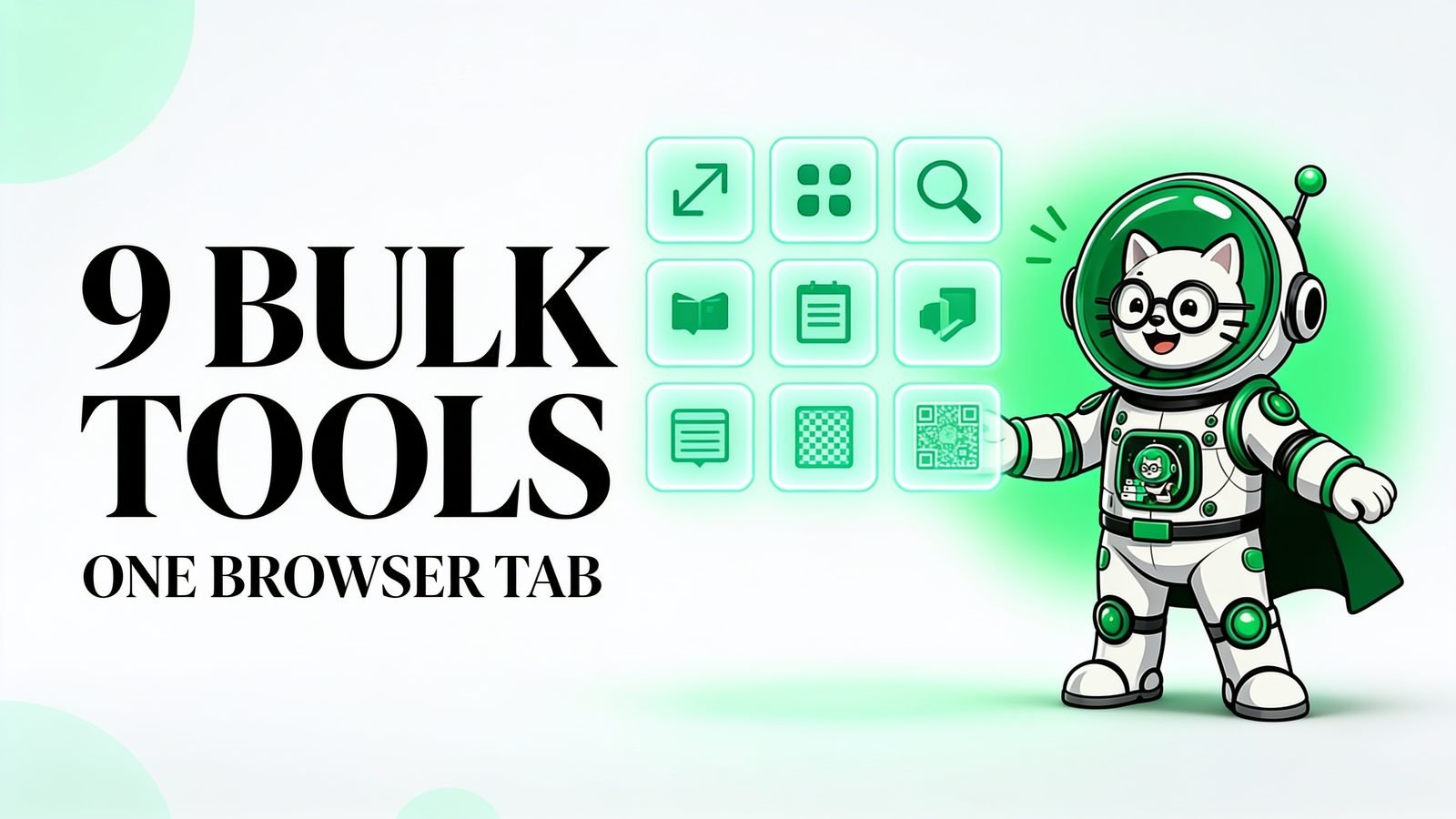
Updated August 2026: This guide reflects the current nine-tool toolkit, Workflow runner, point costs, and batch limits.
Most people find PodBulk looking for one specific thing — usually bulk mockups — and never notice the other eight tools sitting in the sidebar. Which is a shame, because the mockup generator is rarely the one that saves the most time over a month.
This is the full tour: what each tool does, what it costs in points, and the specific moment in a product launch where it earns its keep.
Key takeaways
- Nine bulk tools plus a Workflow runner, all processing locally in your browser.
- Bulk Rename is free and unlimited on every plan — and it's the most-skipped tool.
- Most tools cost 1 point per image; mockups cost 2 points each.
- Free gives 60 points a month and 10 images per batch, with no watermark on output.
- Workflow chains tools into one pipeline, so a launch becomes a single upload.
How do points and batch limits work?
Most tools cost 1 point per image processed, the PSD Mockup Generator costs 2 points per mockup, and Bulk Rename costs nothing at all. The free plan includes 60 points a month with up to 10 images per batch — and critically, no watermark on your output, so free results are production-usable.
The $7.99 plan raises that to 350 points a month with much larger batches: 20 PSD templates × 50 designs per mockup run instead of 3 × 5. For most sellers the batch ceiling matters more than the point count.
The mockup and image-prep tools
These four do the heavy lifting in a typical launch.
PSD Mockup Generator fills the smart object in your PSD templates with your designs and renders every combination — the job that otherwise means opening each file by hand. Upload templates, upload designs, pick an engine, download a ZIP. It costs 2 points per mockup, and there's a full walkthrough in how to bulk replace smart objects.
Bulk Resize scales a whole folder by percentage or to exact pixel dimensions, using Lanczos resampling so output stays sharp. This is the one you run after generating mockups, once per destination — marketplaces and print providers each want their own dimensions.
Bulk Crop trims to a size or aspect ratio across every image at once, with adjustable crop position. Its real use is consistency: square thumbnails that all frame the product the same way look deliberate in a shop grid, and mixed crops look careless.
Bulk Upscale enlarges images two ways. Fast uses Lanczos for instant maths-based enlargement at 1.5x through 6x — right for whole batches. AI Detail runs Real-ESRGAN to reconstruct genuine detail at 4x; it's slower and memory-hungry, so save it for the handful of files that actually need rescuing, and use a recent Chrome or Edge.
Why is the free tool the one people skip?
Bulk Rename costs no points on any plan, takes one pass, and does quiet SEO work on every listing — and it's the tool most sellers never open. It renames whole batches with a base name plus automatic numbering, turning IMG_4471.jpg into vintage-cat-mug-01.jpg.
That matters because marketplaces index file names. Uploading camera-default filenames throws away a free ranking signal on every product, every time. There's no cost, no point spend and no limit — it's the highest benefit-to-effort ratio in the whole toolkit.
Bulk Convert handles the format shuffle: JPG, PNG, WebP and SVG, with HEIC accepted as input. If you photograph products on an iPhone, this is how the HEIC files become listing-ready JPGs without a per-file conversion dance.
The tools that protect and extend your catalogue
Bulk Watermark stamps your logo across a batch with a 3×3 position grid, a repeating tiled pattern, or both — plus a second independent logo layer if you need it. Use it on the previews you post publicly, not the files you upload to listings.
Bulk Pattern tiles each image into a seamless repeating pattern over a background you choose, producing one pattern file per input. That's the gateway to all-over-print products: leggings, phone cases, wrapping paper, fabric. A design that only worked as a chest print becomes a product category.
Bulk QRcode generates QR codes — a simple JPG free on every plan, and on paid plans a full studio: CSV-driven bulk generation, a logo in the centre, custom colours and module shapes, top and bottom captions, and SVG export. Packaging inserts, "scan to review" cards and business cards all come out of one CSV.
| Tool | Cost | Use it when |
|---|---|---|
| PSD Mockup Generator | 2 pts/mockup | Turning designs into listing images |
| Bulk Resize | 1 pt/image | Meeting each marketplace's dimensions |
| Bulk Crop | 1 pt/image | Making a shop grid look consistent |
| Bulk Upscale | 1 pt/image | Rescuing low-res artwork for print |
| Bulk Rename | Free | Always — before every upload |
| Bulk Convert | 1 pt/image | HEIC photos, or shrinking PNGs |
| Bulk Watermark | 1 pt/image | Public previews and social posts |
| Bulk Pattern | 1 pt/image | All-over-print product lines |
| Bulk QRcode | 1 pt/code | Packaging and review cards |
What does Workflow actually do?
Workflow chains the tools into a single automated pipeline — resize, then watermark, then convert, then mockup — so one upload walks through every step in order. You can download results mid-pipeline and save recipes to reuse.
This is where the toolkit stops being nine separate utilities and starts being a production line. The steps you repeat identically for every launch get configured once, and each new drop becomes an upload and a click rather than a rebuilt process.
It carries a 10-point bench fee per run on top of each tool's normal per-image cost, so it's worth using for real multi-step jobs rather than a single resize. One note from the app: Complex-mode mockups aren't available inside recipes yet — use Quick Smart O for mockup steps in a pipeline.
The tools nobody talks about are the ones I use most. I run the mockup generator a few times a month. I run rename on literally every batch, and it has never cost me a point. — Gamer, PodBulk founder
What are the limits worth knowing about?
Because everything runs on your own machine, your hardware sets the ceiling — not a server queue. That's an advantage for privacy and cost, and a constraint for the heaviest jobs. Worth knowing before you plan a workflow around it.
AI upscaling is the clearest example. Real-ESRGAN is memory-hungry and uses your GPU through WebGPU, so it wants a recent Chrome or Edge and it slows down on large batches. Run it on the few files that genuinely need reconstruction and use Fast mode for everything else — that's not a workaround, it's the right tool split.
Batch ceilings are the other limit. Free covers 10 images per batch and 3 PSD templates × 5 designs per mockup run; the paid plan lifts that to 20 × 50. Generous for a normal drop, but a seller pushing hundreds of SKUs at once will split work into several runs.
There's also what PodBulk deliberately isn't. It has no stock template library — it fills PSDs you supply rather than providing scenes. And it isn't a photo editor: no layers, no retouching, no illustration. It's built for repetitive production work, and it stops where design judgement begins.
Which tools should you actually use?
Start with three. Generate mockups from your templates, resize the output for wherever you're listing, and rename the files before you upload. That covers the bulk of a launch and two of the three steps are cheap or free.
Add the others when the situation calls for them: watermark before posting previews publicly, upscale when artwork is too small to print, pattern when you want to extend a design across all-over-print products, QR codes when you're preparing packaging. None of them need to be part of your routine until there's a reason.
Then, once the sequence is stable, wire it into a Workflow recipe so you stop rebuilding it each time. For the wider picture on where the hours go, read how POD sellers save hours on product images. For PSD-specific calculations, see how much time bulk smart-object replacement can save — or open the toolkit and run one batch through it.
Frequently asked questions
How many tools does PodBulk have?
Nine bulk tools — PSD Mockup Generator, Resize, Crop, Upscale, Rename, Convert, Watermark, Pattern and QRcode — plus a Workflow runner that chains them into one automated pipeline. All of them run in your browser.
Which PodBulk tools are completely free?
Bulk Rename is free and unlimited on every plan — it costs no points at all. Everything else draws from your monthly points, and the free plan includes 60 points a month with no watermark on your output.
How do points work?
Most tools cost 1 point per image processed; the PSD Mockup Generator costs 2 points per mockup. Free gives you 60 points a month and 10 images per batch. The $7.99 plan gives 350 points with much larger batches. Bulk Rename never costs points.
What's the difference between Fast and AI upscaling?
Fast uses Lanczos resampling — instant, maths-based enlargement at 1.5x to 6x, ideal for whole batches. AI Detail runs Real-ESRGAN to reconstruct real detail at 4x; it's slower and memory-heavy, so it suits a few images at a time and needs a recent Chrome or Edge.
Are my images uploaded to a server?
No. Every tool processes locally in your browser, so your designs and PSD templates never leave your device. That matters for unreleased artwork and for licensed templates whose terms restrict redistribution.
Can I chain tools together automatically?
Yes — that's what Workflow does. Build a recipe like resize → watermark → convert → mockup, upload once, and the pipeline runs every step in order. You can save recipes and reuse them for each product launch.
Stop making mockups one by one
PodBulk turns your PSD templates + designs into bulk, listing-ready mockups right in your browser — no Photoshop, no install.